> ## Documentation Index
> Fetch the complete documentation index at: https://docs.cadmus-cad.app/llms.txt
> Use this file to discover all available pages before exploring further.
# Import a RapidSOS Alert as a New CFS
> Create a Call for Service from a staged RapidSOS map alert using the slim Import RapidSOS Alert workflow.
When a RapidSOS alert appears on the map, you can turn it into a real Call for Service without retyping everything. Cadmus opens **Import RapidSOS Alert** — a focused version of the New CFS form with RapidSOS data already filled in. You review the prefill, choose an incident type, and create the call.
This workflow is for **staged map alerts** (polling or EDX). It is different from **Track Phone Number**, which follows a live caller on the map without creating a CFS.
## Before you start
* RapidSOS must be configured for your organization in **Web Admin → Integrations → RapidSOS**.
* **RAD-E** (and optionally **LEI**) must be enabled in **Runtime Settings** for your org.
* A RapidSOS pin must be visible on the map with partner data (see [Map and location — RapidSOS alerts](/dispatch/map-and-location#rapidsos-alerts-on-the-map)).
## Open Import RapidSOS Alert
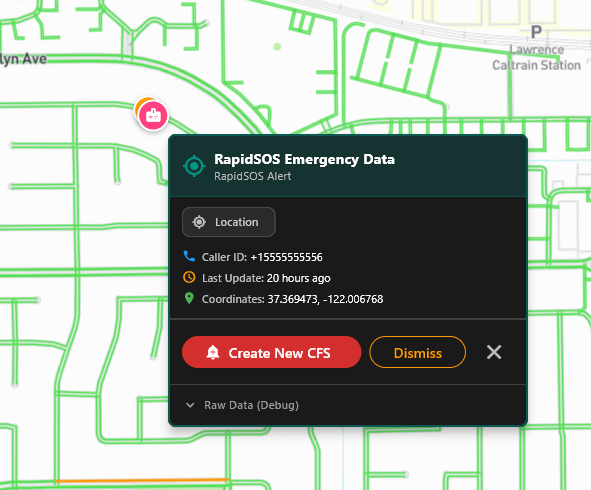
The **RapidSOS Emergency Data** panel opens with caller ID, coordinates, partner sections, and action buttons.
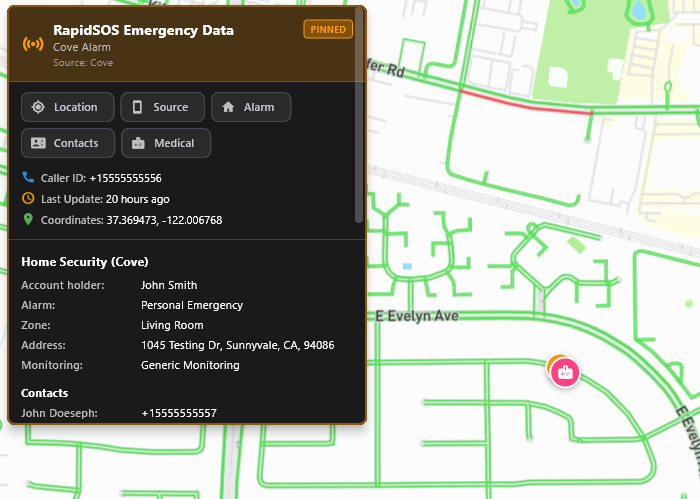
 For rich partner data (e.g. Cove home security), the panel expands with category badges and detail sections:
 Click **Create New CFS**. Cadmus opens **Import RapidSOS Alert** with pre-filled fields from the alert payload.
Use the step bar at the top (**Type**, **Location**, **Nature**, **RP**, **Narrative**) to confirm each section. Green checkmarks mean Cadmus already has data for that section.
**Incident Type** is required — type to search and pick the correct type for your agency. Then click **Create Call** (or **Drop Call** if the alert is not valid).
The import form is intentionally slimmer than a manual New CFS: it emphasizes incident type, location, caller/source, supplemental notes, and optional vehicles — not the full multi-party RP workflow.
## Import form — combined walkthrough
The screenshots below show one continuous form (scroll down through sections). Cadmus does not use a separate “page 2” dialog — location, caller, and vehicles appear below incident detail in the same window.
### Incident detail (Section 1)
Click **Create New CFS**. Cadmus opens **Import RapidSOS Alert** with pre-filled fields from the alert payload.
Use the step bar at the top (**Type**, **Location**, **Nature**, **RP**, **Narrative**) to confirm each section. Green checkmarks mean Cadmus already has data for that section.
**Incident Type** is required — type to search and pick the correct type for your agency. Then click **Create Call** (or **Drop Call** if the alert is not valid).
The import form is intentionally slimmer than a manual New CFS: it emphasizes incident type, location, caller/source, supplemental notes, and optional vehicles — not the full multi-party RP workflow.
## Import form — combined walkthrough
The screenshots below show one continuous form (scroll down through sections). Cadmus does not use a separate “page 2” dialog — location, caller, and vehicles appear below incident detail in the same window.
### Incident detail (Section 1)
 | Field | Typical RapidSOS prefill |
| -------------------- | ----------------------------------------------------------------------------------------- |
| **Incident Type \*** | Empty — dispatcher must select (required before **Create Call** enables) |
| **Priority Level** | May default from alert severity (example: **P2 — Urgent**) |
| **Incident Details** | Short summary from partner data (example: *Cove alarm: Personal Emergency (Living Room)*) |
| **Call time** | Set when the import dialog opens; use refresh if needed |
Footer text shows **Location sent** with the GPS coordinates RapidSOS provided (example: `37.369473, -122.006768`).
### Location and caller (Sections 2–3)
| Field | Typical RapidSOS prefill |
| -------------------- | ----------------------------------------------------------------------------------------- |
| **Incident Type \*** | Empty — dispatcher must select (required before **Create Call** enables) |
| **Priority Level** | May default from alert severity (example: **P2 — Urgent**) |
| **Incident Details** | Short summary from partner data (example: *Cove alarm: Personal Emergency (Living Room)*) |
| **Call time** | Set when the import dialog opens; use refresh if needed |
Footer text shows **Location sent** with the GPS coordinates RapidSOS provided (example: `37.369473, -122.006768`).
### Location and caller (Sections 2–3)
 | Section | What you see |
| ------------------------- | -------------------------------------------------------------------------------------------------------------------------- |
| **2 — Incident Location** | Often **GPS** mode with coordinates pre-filled |
| **3 — Caller / Source** | Caller phone and name; **RapidSOS supplemental notes** text area with medical, contacts, and profile lines |
| **Vehicles Involved** | Populated when crash or mobile partner data includes vehicle fields; use **Add Vehicle** if you need to add or correct one |
Badge chips above the supplemental notes (example: **Cove**, **Location**, **Source**, **Alarm**, **Contacts**, **Medical**) mirror the data categories present in the alert — same categories shown on the map tooltip.
### What is hidden in import mode
To reduce clutter, Import RapidSOS Alert **does not** show the full standard New CFS panels for additional reporting parties, full persons list, or the large RapidSOS insight side panel. Core dispatch fields and vehicles remain available.
## RapidSOS supplemental notes (sandbox demo)
When testing with RapidSOS sandbox number **`+15555555556`**, supplemental notes may include the following example content (your live alerts will differ):
```
Account holder: John Smith
Alarm address: 1045 Testing Dr, Sunnyvale, CA, 94086
Monitoring: Generic Monitoring (acct 132966)
Contact: John Doeseph +15555555557
Residents: Jane Doe (43), Jill (14), Sara (12)
Health: Jane: Type 2 Diabetes
Disabilities: Sara: In Wheelchair
Pets: Jack (Doberman)
Emergency profile: Yqaqrmfo Lalddxiu
Profile: Female, age 55
Profile home: 111 Home St, Apt 2, Elbow, MD, 22222
Conditions: sleep apnea
Allergies: latex
Medical notes: I hardly sleep
Medical: Has experienced one or more symptoms associated with COVID-19
Medical: Has potentially been exposed to a person with a lab-confirmed COVID-19 positive person
Medical: Has had a positive COVID 19 test
Emergency contact: Arthur Allen (uncle) +15555555555
Emergency contact: Betsy Barry (aunt) +16666666666
```
Use supplemental notes as situational awareness — still confirm critical facts with the reporting party or monitoring company when time allows.
## Actions at the bottom of the form
| Button | Result |
| --------------- | ----------------------------------------------------------------- |
| **Cancel** | Closes import without creating a CFS |
| **Drop Call** | Closes and drops the staged alert per agency workflow |
| **Create Call** | Creates the CFS with pre-filled data (requires **Incident Type**) |
GPS coordinates and medical notes may contain PII. Follow your agency CJIS and privacy policy before sharing outside CAD.
## Related pages
* [Map and location — RapidSOS alerts](/dispatch/map-and-location#rapidsos-alerts-on-the-map)
* [Create a CFS manually](/dispatch/create-cfs)
* [Configure RapidSOS in Web Admin](/admin/rapidsos-management)
| Section | What you see |
| ------------------------- | -------------------------------------------------------------------------------------------------------------------------- |
| **2 — Incident Location** | Often **GPS** mode with coordinates pre-filled |
| **3 — Caller / Source** | Caller phone and name; **RapidSOS supplemental notes** text area with medical, contacts, and profile lines |
| **Vehicles Involved** | Populated when crash or mobile partner data includes vehicle fields; use **Add Vehicle** if you need to add or correct one |
Badge chips above the supplemental notes (example: **Cove**, **Location**, **Source**, **Alarm**, **Contacts**, **Medical**) mirror the data categories present in the alert — same categories shown on the map tooltip.
### What is hidden in import mode
To reduce clutter, Import RapidSOS Alert **does not** show the full standard New CFS panels for additional reporting parties, full persons list, or the large RapidSOS insight side panel. Core dispatch fields and vehicles remain available.
## RapidSOS supplemental notes (sandbox demo)
When testing with RapidSOS sandbox number **`+15555555556`**, supplemental notes may include the following example content (your live alerts will differ):
```
Account holder: John Smith
Alarm address: 1045 Testing Dr, Sunnyvale, CA, 94086
Monitoring: Generic Monitoring (acct 132966)
Contact: John Doeseph +15555555557
Residents: Jane Doe (43), Jill (14), Sara (12)
Health: Jane: Type 2 Diabetes
Disabilities: Sara: In Wheelchair
Pets: Jack (Doberman)
Emergency profile: Yqaqrmfo Lalddxiu
Profile: Female, age 55
Profile home: 111 Home St, Apt 2, Elbow, MD, 22222
Conditions: sleep apnea
Allergies: latex
Medical notes: I hardly sleep
Medical: Has experienced one or more symptoms associated with COVID-19
Medical: Has potentially been exposed to a person with a lab-confirmed COVID-19 positive person
Medical: Has had a positive COVID 19 test
Emergency contact: Arthur Allen (uncle) +15555555555
Emergency contact: Betsy Barry (aunt) +16666666666
```
Use supplemental notes as situational awareness — still confirm critical facts with the reporting party or monitoring company when time allows.
## Actions at the bottom of the form
| Button | Result |
| --------------- | ----------------------------------------------------------------- |
| **Cancel** | Closes import without creating a CFS |
| **Drop Call** | Closes and drops the staged alert per agency workflow |
| **Create Call** | Creates the CFS with pre-filled data (requires **Incident Type**) |
GPS coordinates and medical notes may contain PII. Follow your agency CJIS and privacy policy before sharing outside CAD.
## Related pages
* [Map and location — RapidSOS alerts](/dispatch/map-and-location#rapidsos-alerts-on-the-map)
* [Create a CFS manually](/dispatch/create-cfs)
* [Configure RapidSOS in Web Admin](/admin/rapidsos-management)